Last updated: 17 November 2026. This guide follows YouTube’s own help pages and the current YouTube Studio layout. The old steps on this page described the 2018 upload screen and no longer match Studio.
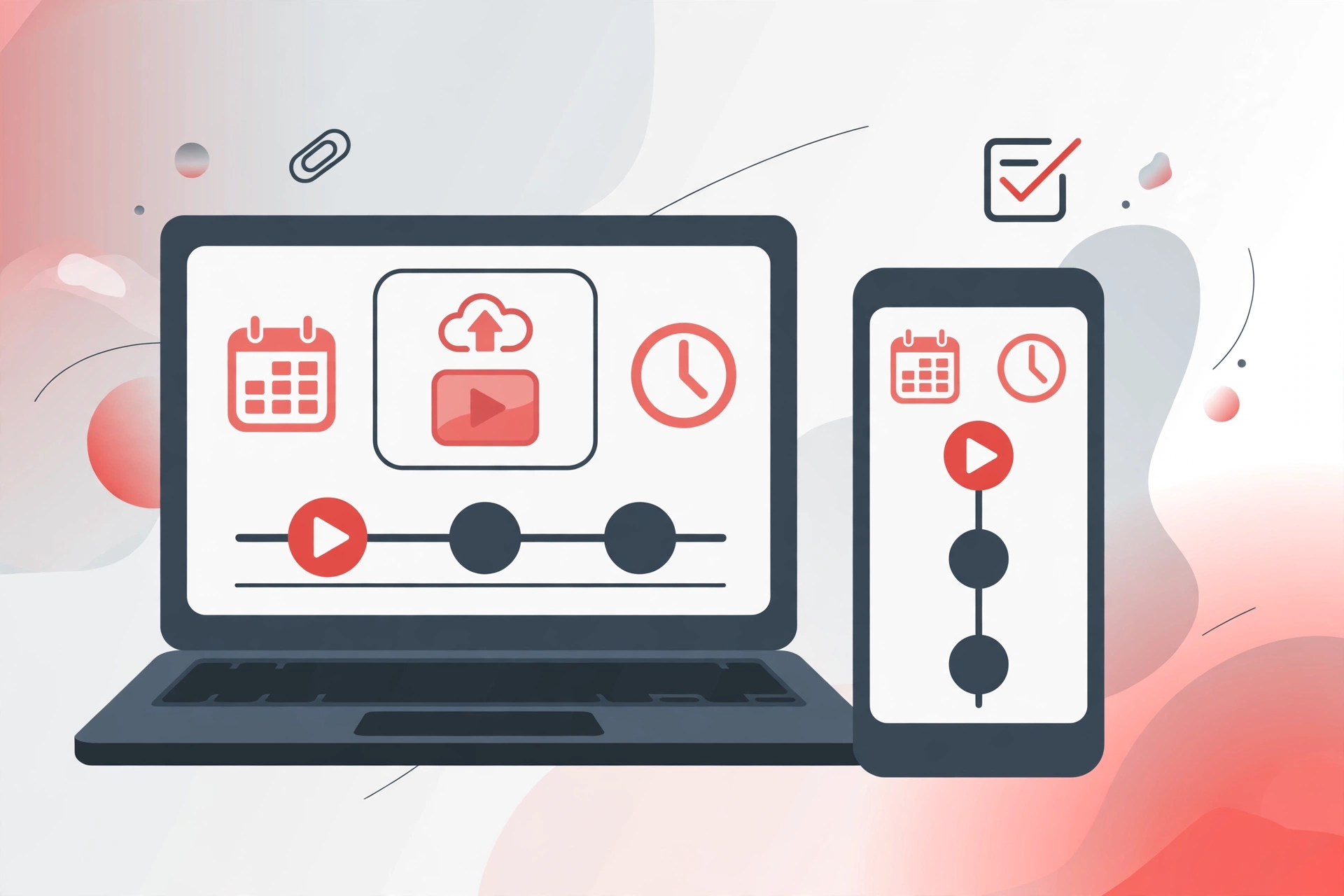
How to Schedule a YouTube Video? Open YouTube Studio, start an upload, and choose Schedule at the Visibility step — then set the date, time and time zone you want. The video stays private until that moment, then goes public on its own. Scheduling is free in YouTube Studio, and you do not need a separate scheduling app.
How to Schedule a YouTube Video in YouTube Studio
Sign in to YouTube Studio at studio.youtube.com (or use the YouTube app).
Select Create, then Upload videos.
Select the file and fill in the video details — title, description, thumbnail, playlist and the audience setting (whether the video is made for kids).
Work through Video elements (subtitles, end screen, cards) and Checks (YouTube’s copyright scan).
On the Visibility step, choose the Schedule card.
Set the date, time and time zone you want the video published, then click Schedule.
Two things to get right: the video must be set to scheduled or private on the upload page before you can set a time, and the final button reads Schedule — clicking Publish instead would publish the video immediately. If you close the upload window before finishing the Visibility step, the video is saved as private, not scheduled. You can follow the same steps in YouTube’s own help article: Schedule video publish time.
How to Change a Scheduled Video’s Time
Open Content in YouTube Studio, select the video, then Edit → Visibility. To pick a new time, the visibility must stay Private — click Edit draft and choose the new time under Schedule. To publish the video right away instead, set the visibility to Public.
Can You Schedule a YouTube Premiere?
Yes, for regular videos: choose Schedule, set the date and time, and tick Set as Premiere. A Premiere plays the video live for the first time with your audience watching together. Note that Shorts are not supported for Premieres — that is how to schedule a YouTube video as a Premiere, not as a Short.
Does Scheduling Get You More Views?
Honestly: no, not by itself. YouTube gives scheduled videos no extra reach — a scheduled video performs the same as a video published manually at the same time. What scheduling does help with is consistency: your audience knows when to expect a new video, and you can prepare videos in advance instead of rushing on upload day. Uploading several videos at once is not the “big mistake” some old guides claim — bulk uploading is allowed and common — but a regular schedule (once a week, or every few days) is easier for viewers to follow than a sudden dump of videos. If you want to grow as a creator, the things that matter are the video itself, the title and thumbnail, and keeping viewers watching — not the publish button you used. For how creators actually earn on video platforms, see our guides to TikTok’s Creator Rewards Program and Online Earning in Pakistan.
Things to Know Before You Schedule
The watch page date is Pacific time. YouTube dates the watch page in Pacific Standard Time, so if you schedule from Pakistan, viewers may see a different date than the one in Studio. To show a particular date, schedule the video to go public on that date in Pacific time.
A strike freezes your schedule. If your channel has a Community Guidelines strike, a scheduled video will not publish during the penalty period — it is set to private, and you have to reschedule it after the freeze ends.
How far ahead can you schedule? YouTube’s help pages do not state a limit. Treat any specific number you read elsewhere (six months, one year, two years) as unverified.
Once a video is public, it cannot be scheduled again. Scheduling only works on a video that is still private.
FAQs
Is scheduling a YouTube video free?
Yes. Scheduling is built into YouTube Studio and costs nothing. You do not need a paid scheduling tool.
Can I schedule a YouTube video from my phone?
Yes. YouTube’s help says scheduling works from YouTube Studio or from the YouTube app — upload the video, and at the visibility options choose Schedule instead of Public, then set the date and time. That is how to schedule a YouTube video from your phone.
Can I schedule a YouTube Short?
Yes, Shorts can be scheduled the same way as regular videos. What Shorts cannot do is Premiere — Premieres are not supported for Shorts.
What happens if I close the upload window before scheduling?
The video is saved as private, not scheduled. Open it from Content in YouTube Studio and set the schedule from the Visibility step.
Does scheduling a video help it get more views?
No. Scheduling gives a video no extra reach. It helps you publish consistently, which is good for your channel — but views depend on the video, the title and thumbnail, and how long viewers watch.